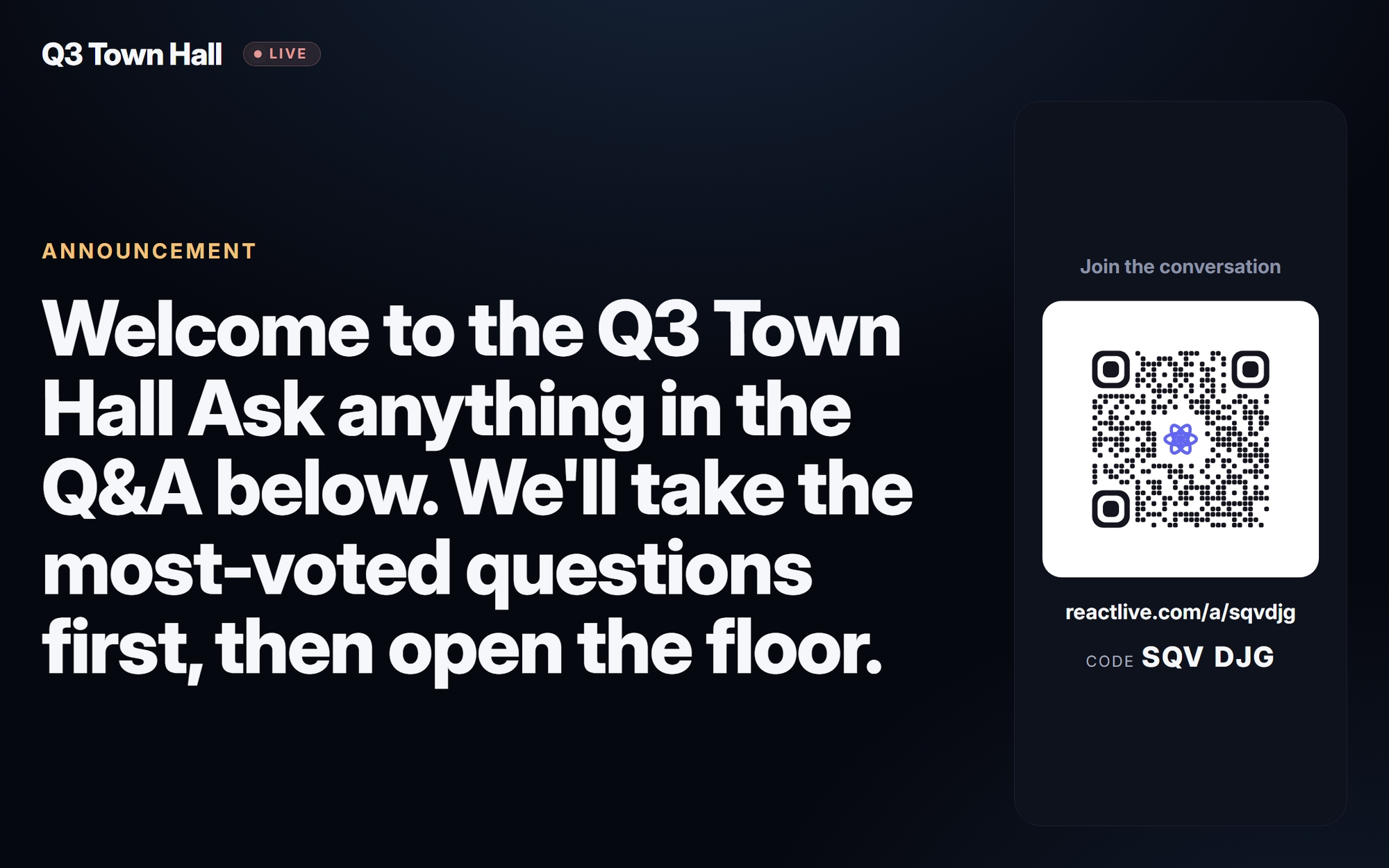
The wall is the big screen in the room. It shows whatever you have put in focus, the join QR for people who have not joined yet, and the reactions floating up from the audience. It is always dark, always full-bleed, and it is controlled from the console — the wall itself has no buttons.
What it shows
- Main view
- The focused item — a question, a poll with its live tally, an announcement, the rating poll — or, in Event info mode, a large centred join QR with the code.
- Top bar
- The event name and, when the event is on, a LIVE badge and the live headcount. Each is a toggle.
- Join panel
- The QR and the code, so latecomers can join from the screen.
- Reactions
- Every reaction the audience sends floats up over the wall.
Controlling it
Two things drive the wall, both from the console or the mobile console:
- In focus — Move to in focus on any question, poll or update puts it on the wall; × on the In focus panel clears it. One item at a time. A focused poll keeps counting on the wall as votes arrive. In focus →
- Wall controls — Main view (In focus / Event info / Off) and the four Show on wall toggles (QR code, Reactions, Event name, Event stats). Changes reach every open wall within a second. Wall controls →
The Engage agent can put things in focus too: on Assist only when you approve its card; on Auto it fills an empty wall and replaces its own items but never evicts something a person put there.
Setting it up on the day
- Use a dedicated machine — a laptop or media player plugged into the room's display, running nothing else. Open Event links → Wall in a normal browser window.
- Full screen — F11 on Windows/Linux, ⌃⌘F on a Mac. Hide the cursor by moving it to an edge.
- Start on Event info — the big join QR — until you have something to show. Switch Main view to In focus when the first question goes up.
- Check the QR scans from the back of the room. If it is too small, keep Event info as the main view for the opening minutes, then switch.
- Turn off what you do not need. A keynote with no reactions wants Reactions off; a private town hall may not want the headcount.
- Leave it alone. The wall reconnects on its own if the network blips, and follows every change from the console. Nobody needs to touch the machine during the event.
Sleep and screensavers
Disable the display sleep and the screensaver on the wall machine. A dark wall with a bright QR looks the same as a sleeping monitor from the audience.