Settings has eight tabs — Configuration, Access, Team, Engagement, Reactions, Agents, AI knowledge and Integrations: access and sign-in, the team who run it, what the audience can post, the reaction set, and what the AI is allowed to read — configure it here before the doors open. Every screen in Settings is for this one event; the workspace-wide defaults are under Account.
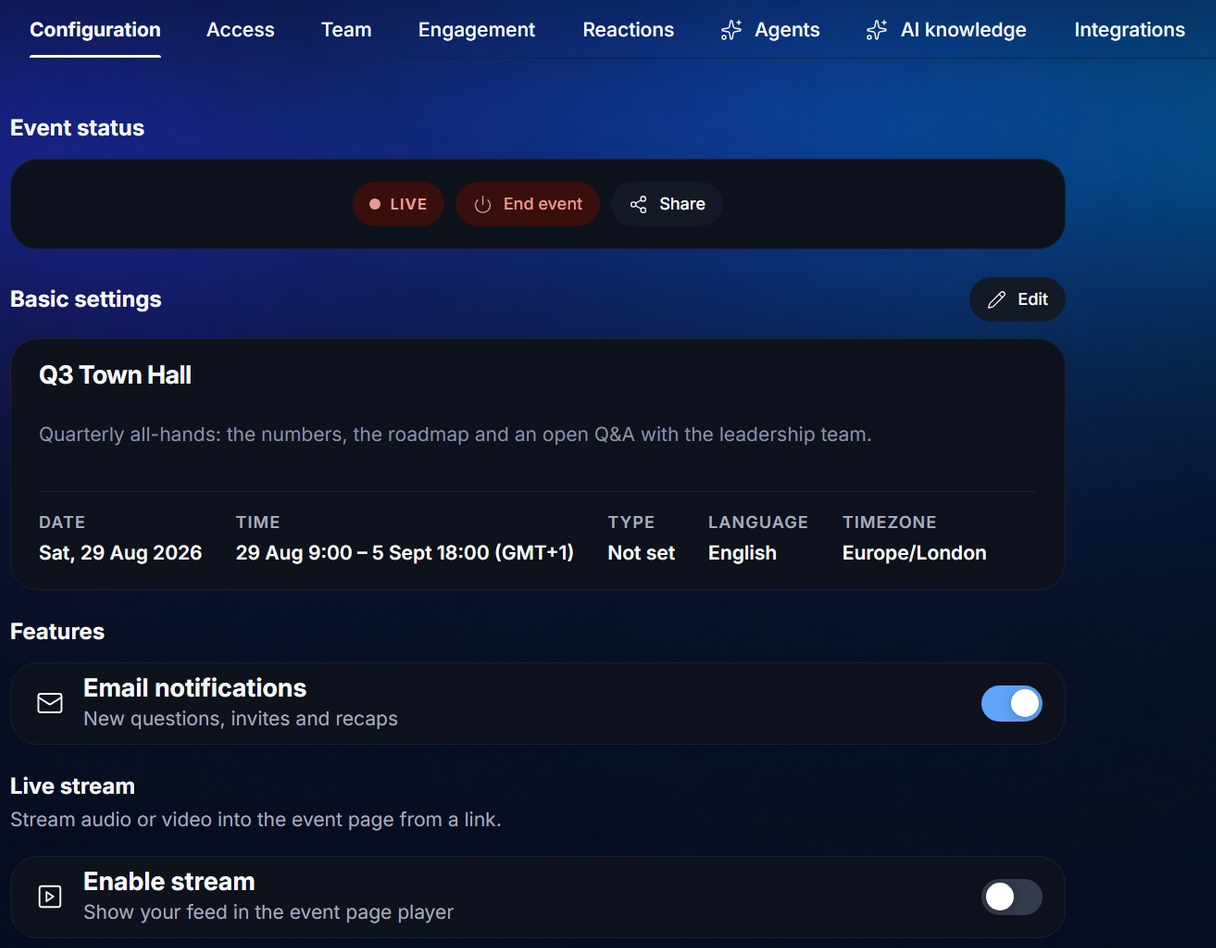
Configuration
Event status
The status pill, and the buttons that move the event along early — the one that fits the event's current state is shown: Go live now (moves the start time to now — the audience can join immediately) and End event (sets the end time to now — audience surfaces switch to their after-event state). Share copies the join link and shows the QR.
Basic settings
Edit opens the name, description, date, start and end time, language and timezone. The end has to be after the start. Changes apply with Save changes at the bottom of the page. Apply a blueprint previews one of the event types' setups against this event and applies it after you confirm.
Live stream
Stream audio or video into the event page from a link. Turn on Enable stream, choose Video or Audio, and paste the URL: a YouTube or Vimeo link, a Zoom embed, an HLS stream (.m3u8), or a direct MP4/WebM file. YouTube and Vimeo play with their own controls; HLS and files get ReactLive's player.
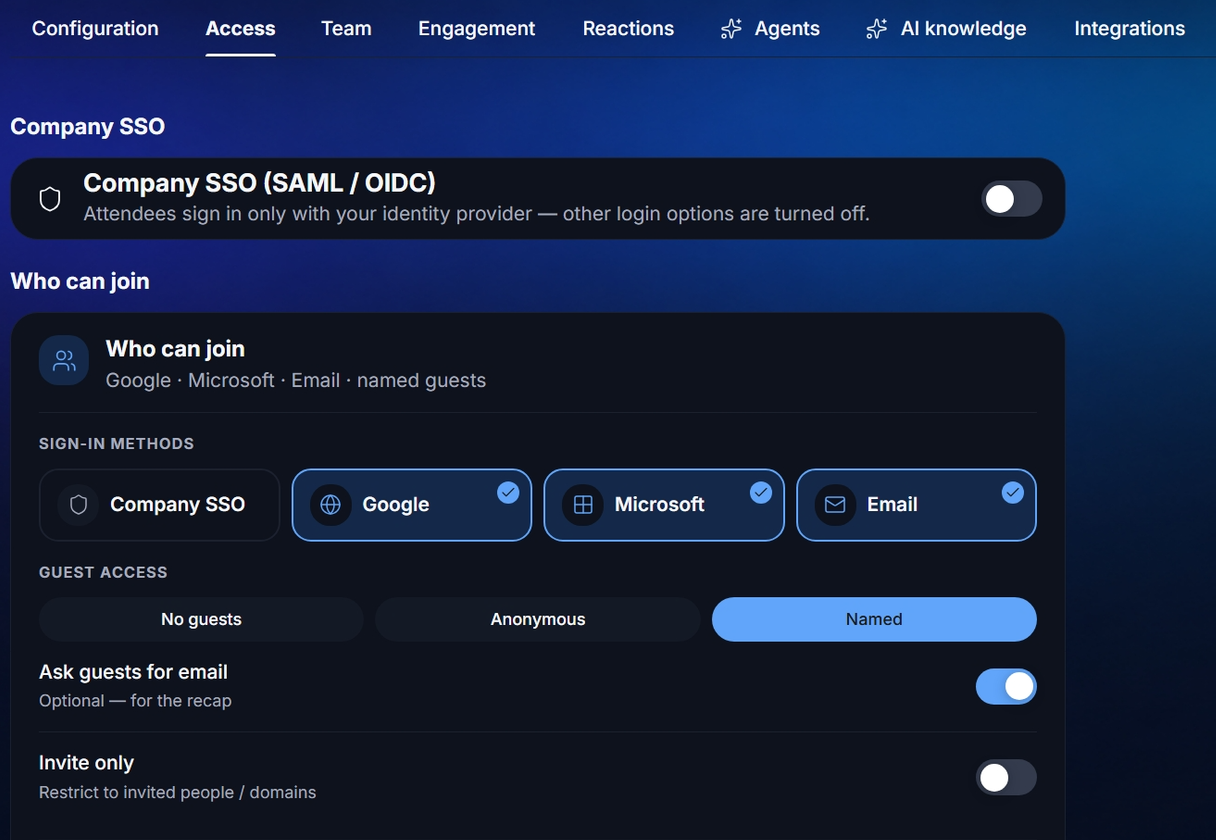
Access
The event code
The short code attendees join with, under Event code below the Audience join code QR. A new event gets a generated six-character code, shown grouped for reading (7K2 Q4H); you can change it to something memorable. Rules: 4–20 letters or numbers; case, spaces and hyphens are ignored, so Ignite-2027 is stored and matched as ignite2027. A code is yours for the life of the event — it is never recycled to another event, so a printed QR can never land on someone else's session.
Change code checks availability as you type and offers a suggestion if yours is taken. Changing a code frees the old one instantly — anything printed with it (QR on slides, invitations) stops resolving — so the console asks you to confirm.
Sign-in methods
Under Who can join, tiles for Google, Microsoft and Email. Turn on the ones attendees may use.
Guest access
No guests (everyone must sign in), Anonymous (join without any details), or Named (join with a display name). Ask guests for email collects an address without requiring sign-in. Invite only restricts joining to the people on the access list.
Consent and privacy
At the join screen attendees must agree to your privacy policy. Roster at the bottom of the tab opens Insights → Participants, the list of people who joined with an account, with Export CSV for a data-access request.
Team
The moderators who run this event. Search people or enter an email… — anyone already in the workspace is listed and can be added straight to the event; an email address invites someone new to both. A moderator creates and runs this event, with full control — settings, insights and report. Removing someone removes their moderator access to this event only. Account admins are managed under Account → Team. Adds and removals apply immediately; there is no separate save.
Engagement
Control how the audience interacts with your questions, polls and updates.
| Setting | What it does |
|---|---|
| Allow audience questions | Let attendees submit questions to the Q&A. |
| Upvoting | Let the audience upvote questions to surface the best. |
| Reactions on questions | Let the audience react to questions. |
| Questions unapproved by default | New questions stay hidden until a moderator approves them. The audience app tells the asker their question is with the moderators. |
| Show results live | Let the audience see poll results after they vote — otherwise never, unless you show them per poll. |
| Reactions on updates | Let the audience react to announcements. |
Reactions
The reactions the audience can send. Drag a tile to reorder, × to remove, add more from the picker, Reset to default to get the standard set back. Save changes to apply. The current set is also previewed under Engage → Tools.
Agents
How much each agent may do on this event without being asked. Each of Engage, Answer and Protect has the same control — Off · Assist · Auto — and a Use workspace default link. Leave one on Default and it follows whatever the community is set to; set it and this event overrides. The setting belongs to the event, not to a session, so it is where you left it next time you open the console.
Event AI conversations has its own control — the private Ask Event AI chat in the audience app is separate from public question answering. Off hides the card in the audience app; Assist queues each reply for your approval; Auto lets replies publish on their own.
Question grouping — whether the AI folds near-duplicate questions into one group (see grouped questions) — is here too, for workspace admins. Report has a row of its own with just Off and Auto, since it only observes.
The full explanation is in The AI agents.
AI knowledge
The files and links the Answer agent and the Event AI ground their replies in. Covered on its own page: AI knowledge.
Integrations
Connecting this event to Zoom, YouTube Live, Slack and more is coming. Driving the event from an AI assistant is already possible — see MCP connectors, which is set up once per workspace rather than per event. The live stream setting already covers showing a feed on the event page.