The events list is the front door of your workspace — everything you are running or have run. It is also where every event's surfaces are one click away.
The events list
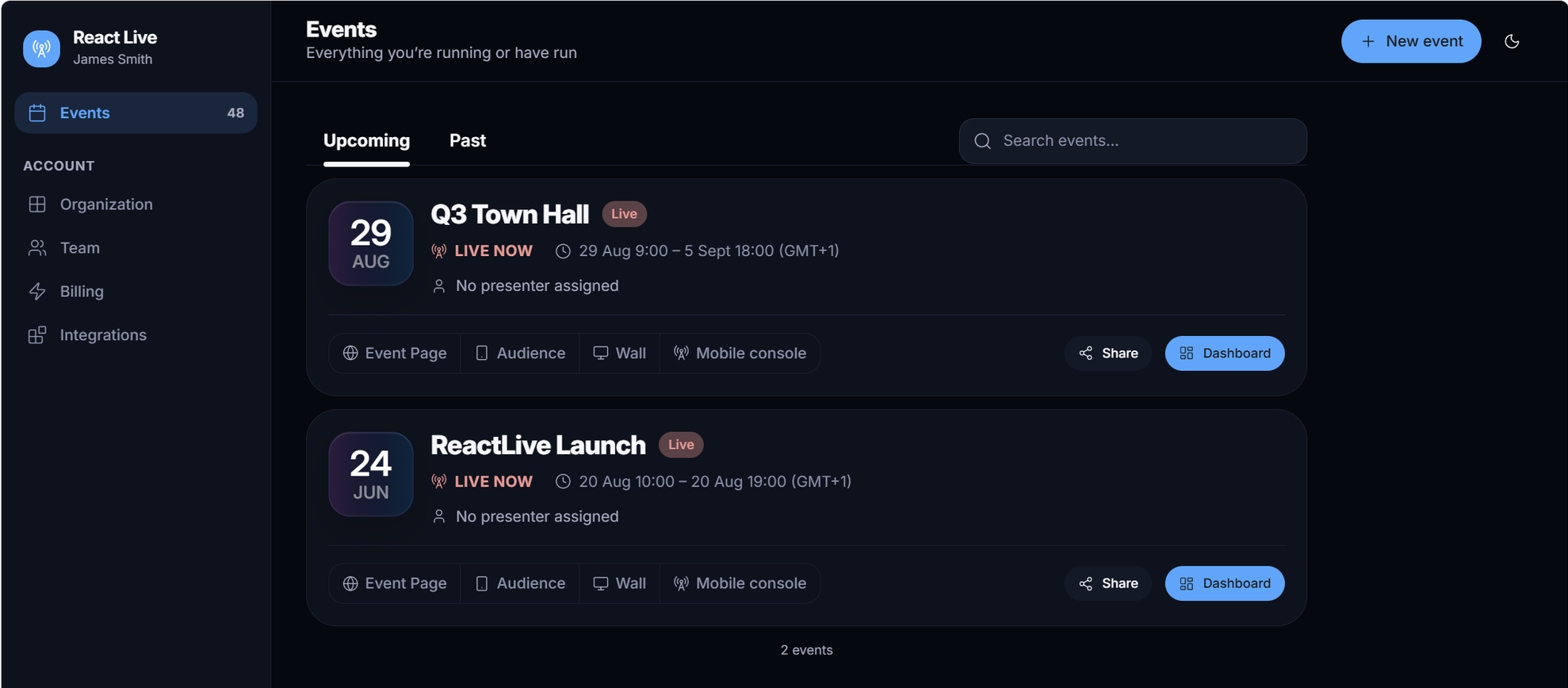
- Live holds what is on right now, with a count beside it; Upcoming holds everything that has not ended; Past holds what has. Search events… filters by name.
- The date badge is the start date. The status pill reads Live while the event is on; the line under the title shows LIVE NOW or the start countdown, then the full time range with its UTC offset.
- The tiles — Event page, Audience app, Wall, Mobile console — open that surface in a new tab. Share copies the join link and shows the QR code. Dashboard opens the event's console.
The sidebar on this screen is the account sidebar: Events, and under Account, Organization, Team, Billing and Integrations. Those are covered in Account & team.
Creating an event
Press New event. The flow is two steps.
Step 1: the basics
Create an event asks for the Event name and When: the timezone, when it Starts, and either a Duration — 1h, 2h, 4h or All day — or an exact time it Ends. The end must be after the start. Everything can be changed later under Settings → Configuration. Continue goes on to the event type; Create with defaults skips it and creates the event as Custom.
Step 2: the event type
Choose your event type: pick the one closest to what you are running. A type is a preset: it fills in the setup — who can sign in, whether guests are allowed, whether questions need approval before the audience sees them, reactions, email notifications — and shows you exactly what it chose in the Setup card so you can adjust before creating. The type is a label on the event afterwards; editing the setup never reclassifies it.
| Type | Built for |
|---|---|
| Town Hall | A leadership or civic session where the audience asks and the stage answers. Upvotes on, reactions on. |
| Conference | A session or panel: fast, upvote-driven Q&A with work identities. |
| Investor Update | An earnings call or briefing: curated, verified identities, host-driven agenda — no upvotes, no reactions. |
| Classroom | A class or lecture: open asking, low pressure, school accounts. |
| Training | A hands-on workshop: questions answered as you go, work identities. |
| Webinar | A remote audience, speaker-led; questions queued and upvoted for the host. |
| Watch Party | A live watch-along: high-velocity chat, reactions first, zero friction to join. |
| Custom | Something else — sensible platform defaults, every setting yours to change. |
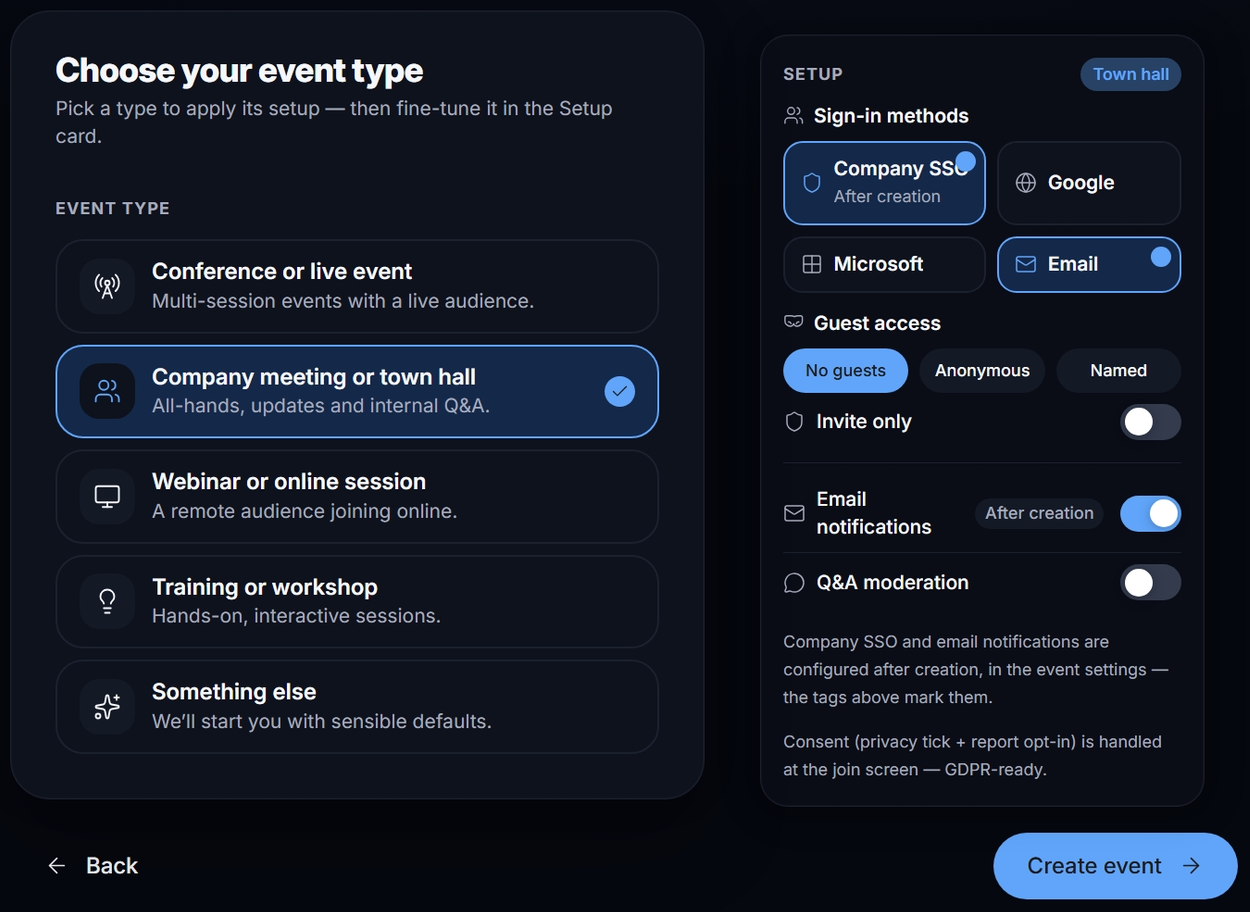
Press Create event (Back returns to the basics). ReactLive prepares the audience app, the event page, the wall and the mobile console, assigns the event a join code and adds you as its first moderator. Your event is ready shows the join code and the four surfaces; Go to admin opens the console. The AI agents start at the workspace defaults — Protect and Report on Auto, Engage and Answer on Assist — which you can change under Settings → Agents.
Event status: scheduled, live, ended
An event is scheduled until its start time, live from its start until its end, and ended after that. Two buttons in Settings → Configuration move it along early:
- Go live now moves the event's start time to now, replacing the scheduled start — the audience can join immediately.
- End event sets the end time to now. Audience surfaces switch to their after-event state (recap and rating); the live insights freeze into the final report.
The join code and every link keep working in all three states. Someone scanning a printed QR the day before sees "starts soon", not an error; someone opening it a week after sees the recap.
The links an event carries
- Join link
https://www.reactlive.com/e/<code>— the one to print and share. On a phone it opens the audience app; on a laptop, the event page.- Phone link
https://www.reactlive.com/m/<code>— the same, but always the audience app. Handy in a text message.- Typed entry
- reactlive.com/join — a box to type the code into. Case, spaces and hyphens do not matter:
7K2 Q4H,7k2q4hand7K2-Q4Hall work. - Console
https://<workspace>.reactlive.com/dashboard— moderators only.
The code itself is explained under Settings → Access → The event code.