ReactLive has an MCP server: connect an AI assistant such as Claude to your workspace and run it from a chat. Create and configure events, approve and answer questions, run polls, manage the team and pull the report — by asking, in your own words. The assistant does exactly what you could do in the console, as you, and nothing more.
Before you start
- A ReactLive workspace you are a member of. The connection acts as you, in one workspace. What you can do through it is what your role allows in the console — an admin can do everything below; a moderator, the event side of it.
- An MCP-capable assistant. Claude.ai, Claude Desktop, Claude Code and Cursor are covered below. Any client that supports remote servers over streamable HTTP with OAuth sign-in will connect the same way.
The server
There is one server URL for everyone, whatever your workspace is called:
https://www.reactlive.com/api/v2/mcpIt is a remote server — nothing to download or run. Your workspace's name does not go into the address; you choose the workspace when you authorise the connection, and the connection then stays scoped to it.
Connect an assistant
Claude.ai and Claude Desktop
- Open Connectors.
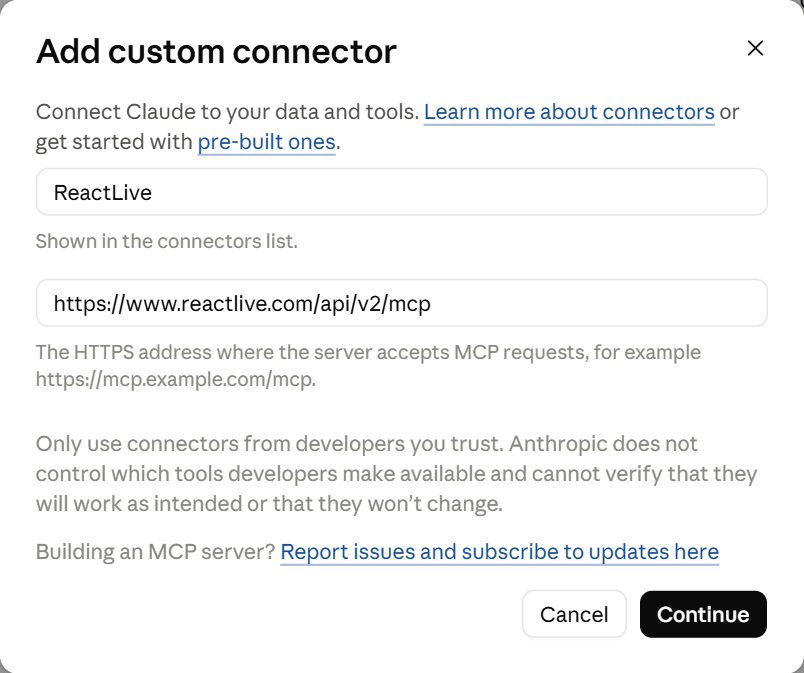
In Claude, open Settings → Connectors and press Add custom connector.
- Name it and paste the URL.
Name:
ReactLive. Remote MCP server URL:https://www.reactlive.com/api/v2/mcp, then press Continue. No client ID or secret is needed — the server registers the client itself. - Connect and authorise.
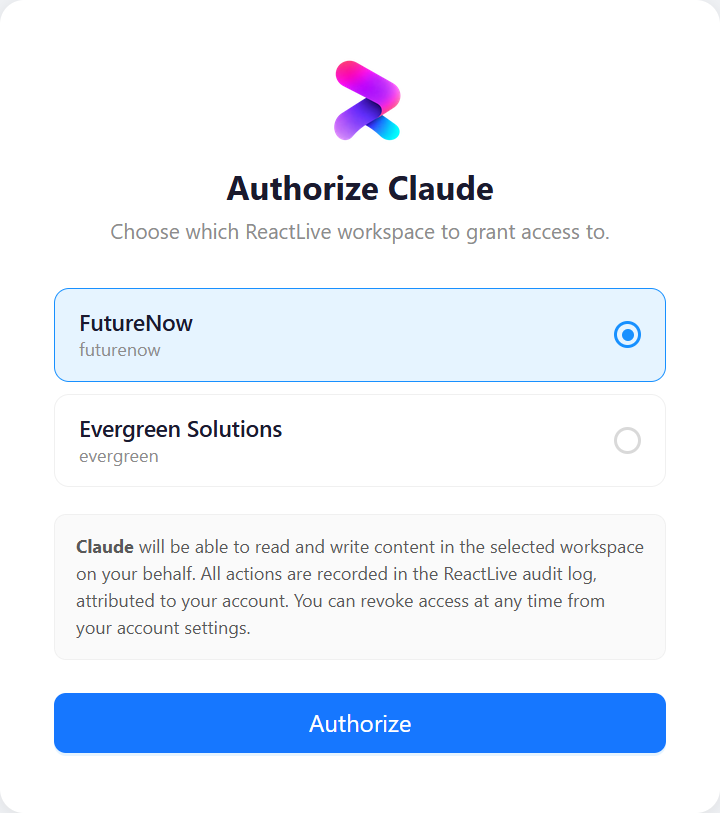
Press Connect. Claude opens ReactLive: sign in if you are not already, pick the workspace, press Authorize. You are returned to Claude with the connector on.
Claude Code
From a terminal, in the project you want to use it from (or with --scope user to have it everywhere):
claude mcp add --transport http reactlive https://www.reactlive.com/api/v2/mcpOr add it by hand to .mcp.json in the project root:
{
  "mcpServers": {
    "reactlive": {
      "type": "http",
      "url": "https://www.reactlive.com/api/v2/mcp"
    }
  }
}
Then run /mcp inside Claude Code, choose reactlive and Authenticate — the same sign-in and workspace choice as above opens in your browser.
Cursor
Add the server to .cursor/mcp.json (project) or ~/.cursor/mcp.json (everywhere), then authorise it from Settings → MCP:
{
  "mcpServers": {
    "reactlive": {
      "url": "https://www.reactlive.com/api/v2/mcp"
    }
  }
}
Any other client
Give it the server URL as a remote (streamable HTTP) server. ReactLive supports the standard discovery chain — OAuth 2.0 with PKCE, dynamic client registration and refresh tokens, advertised at https://www.reactlive.com/.well-known/oauth-authorization-server — so a client that follows the MCP specification needs no client ID or secret from you.
Authorising, and choosing the workspace
The first time a client connects, ReactLive opens an authorisation page in your browser. If you are not signed in it asks you to sign in first. The page lists every workspace you belong to; choose the one this assistant should act on and press Authorize. What the client receives is a token for that workspace only, with read and write access within it.
- Switching workspace
- Disconnect the server in your assistant and connect it again — the authorisation page comes back and you can choose a different workspace. One connector is one workspace; add the server twice under two names if you work across two.
- Taking access away
- Disconnect it in the assistant. The token stops working; nothing else about your account changes.
- Who it acts as
- You. Every event it creates, every approval and every answer is recorded against your account, the same as if you had done it in the console.
What you can do
You ask in plain language and the assistant picks the tool. Behind the scenes the server exposes about thirty tools; this is what they cover, in console terms.
| Area | What the assistant can do |
|---|---|
| Events | List and search your events; get one event's full configuration; create an event of any type with a schedule and timezone; copy an event as the template for a new one; update any setting (name, schedule, sign-in and guest access, moderation, engagement rules, theming); publish and unpublish an event; delete one. |
| Questions and content Answer | List, search and filter what the audience has posted — questions, comments, answers and updates, including what is still waiting for approval; read a question with its whole conversation; approve or un-approve; pin something to the top of the stream; post a question, a comment or reply, a speaker answer, or an update; delete a post for good. |
| Polls Engage | Create a poll with its options; read the results; cast a vote. |
| Categories | List, create, rename and delete the categories questions are filed under. |
| Team | List the moderators on an event with their roles; add a moderator by email (creating their membership if they are not yet in the workspace, after asking you); remove one. |
| Insights and the report Report | Get an event's numbers — questions, answers, comments, polls, participants, engagement; get the live "read the room" snapshot and the whole-event report the Report agent has already produced, at no AI cost; ask for a fresh AI summary with sentiment over any window; get an AI usage and cost breakdown per agent, per event or per month. |
| Scheduling | Schedule something to happen at a given time: approve or pin a post, or open and close asking, replies and reactions — "close questions at 4:55pm". |
The assistant always starts by listing your events so that it is working on the right one; it will ask when a request is ambiguous ("which town hall?").
Things to ask
Some prompts that work as written. Replace the names with your own; the assistant looks up the IDs.
Set up an event
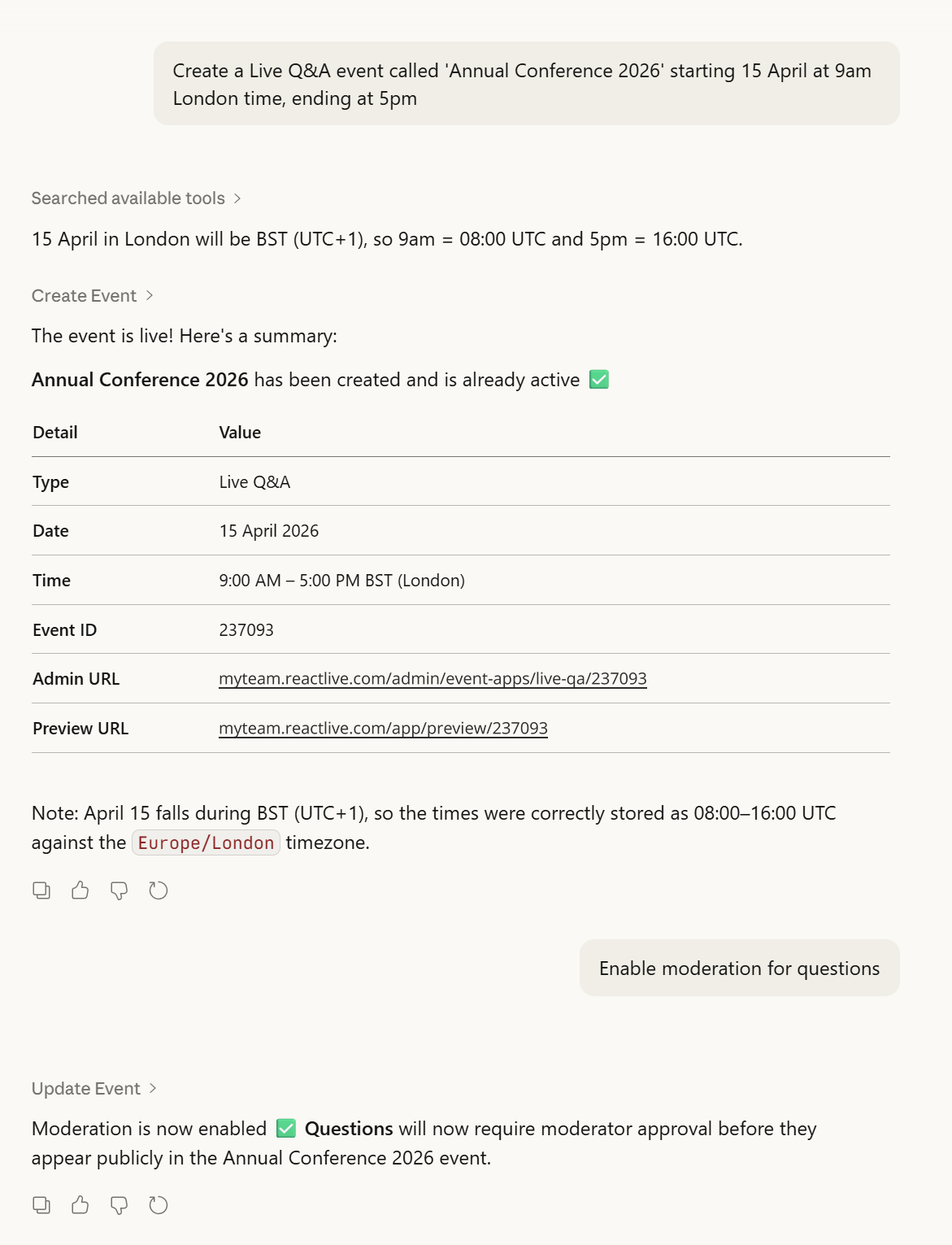
"Create a Live Q&A event called 'Annual Conference 2026' starting 15 April at 9am London time, ending at 5pm." Follow up in the same chat — "enable moderation for questions" — and it updates the event it just made.
Bring in the team
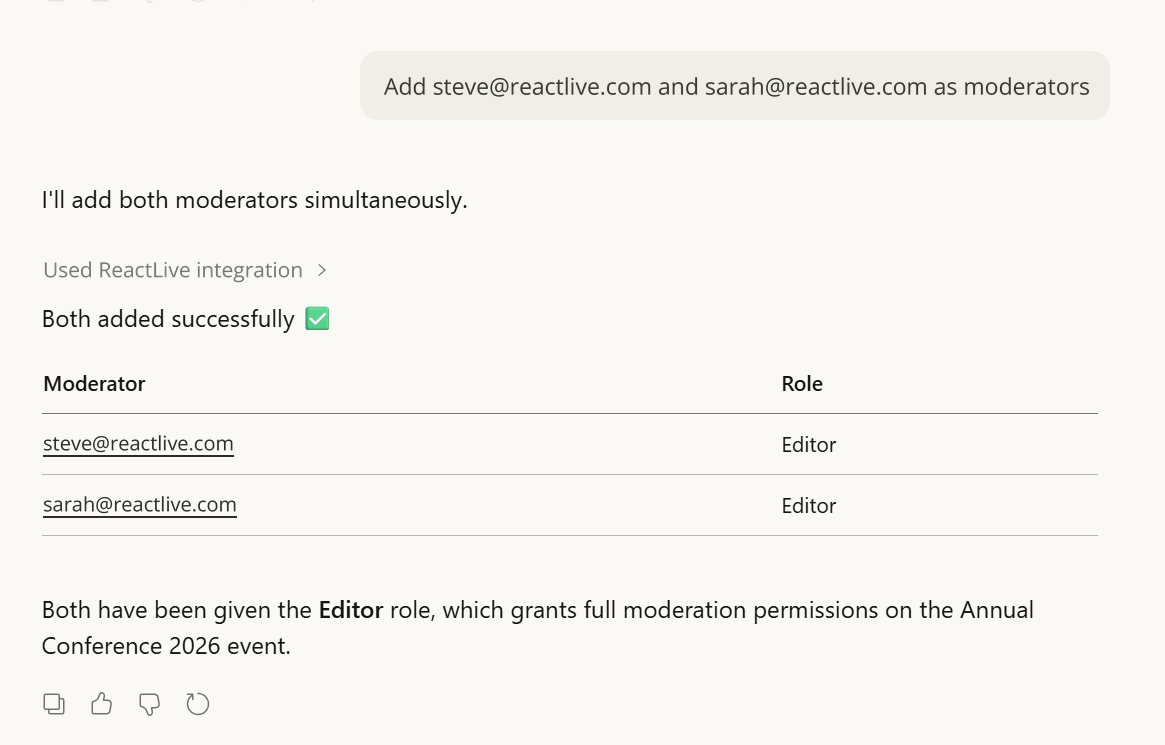
"Add steve@reactlive.com and sarah@reactlive.com as moderators." If someone is not yet a member of the workspace the assistant asks before creating them.
Feed the AI
Knowledge sources are added under Settings → AI knowledge in the console — the connector does not upload files. It can tell you what the event's settings say, so "Is the Answer agent on for Q3 All-Hands?" works.
Moderate during the event
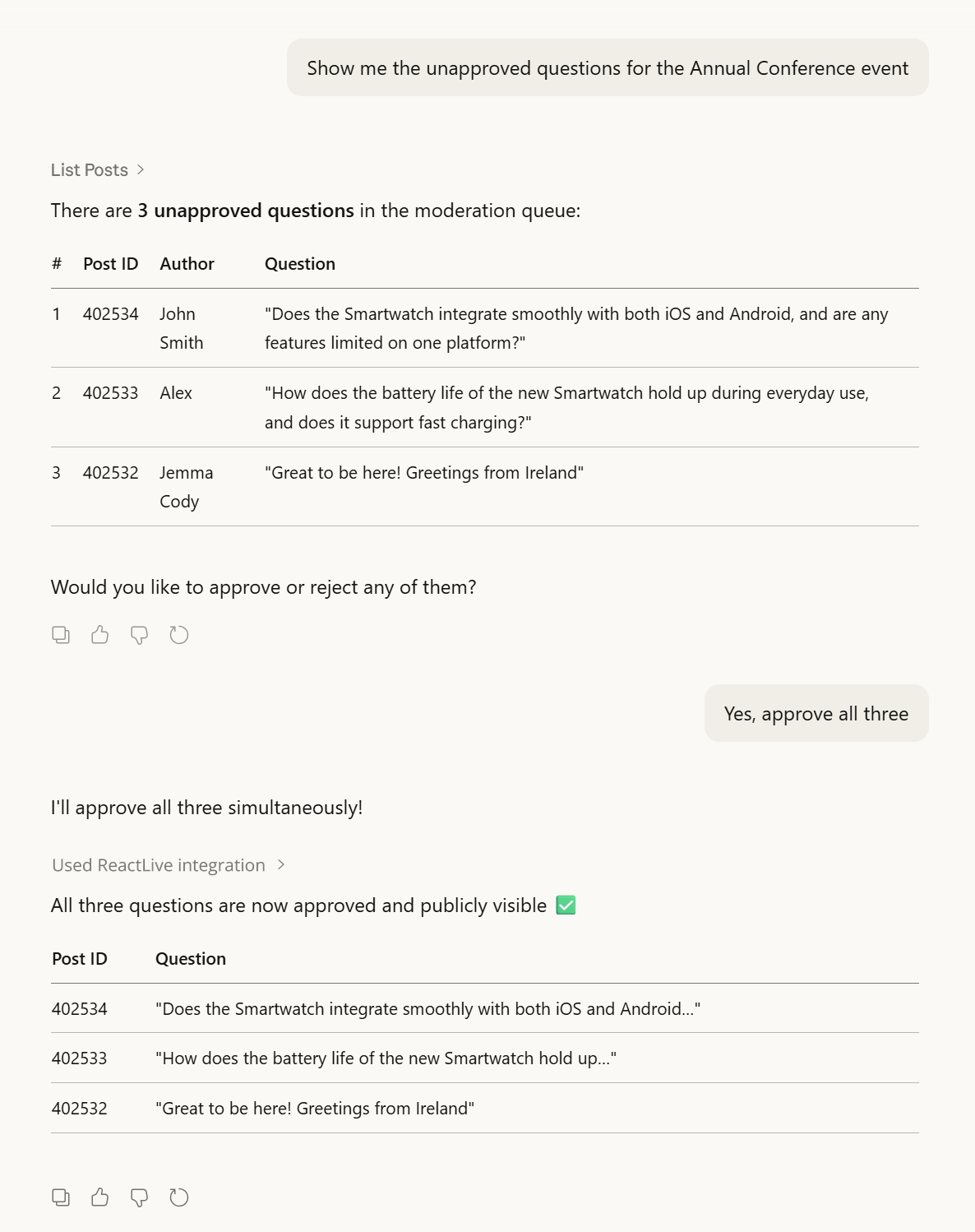
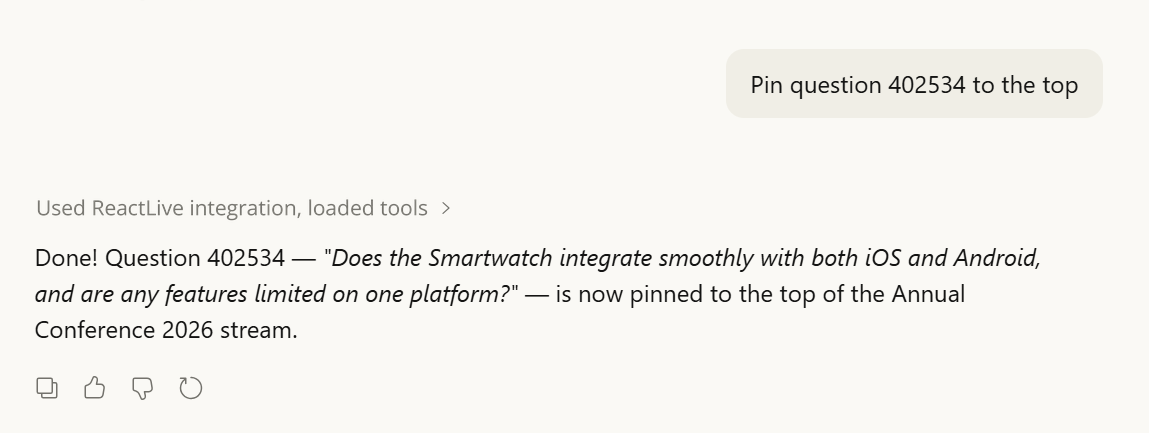
"Show me the unapproved questions for the Annual Conference event" — then "yes, approve all three", or all but one. Pinning works the same way: describe the question, or use the post ID from the list.
Run a poll
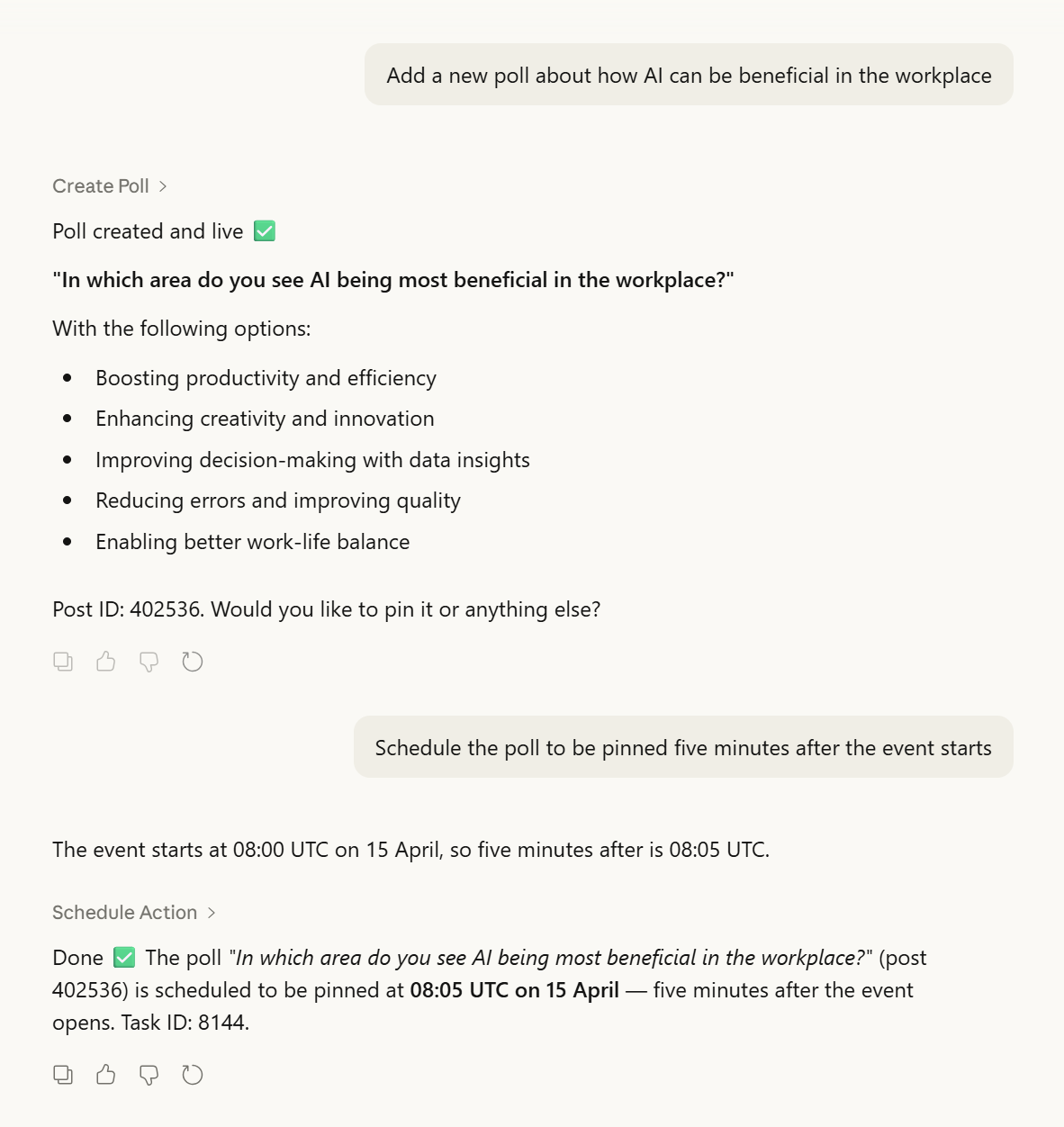
"Add a new poll about how AI can be beneficial in the workplace." Give it only the topic and the assistant writes the question and options — spell them out yourself when you want them word for word. It can schedule around the event too: "schedule the poll to be pinned five minutes after the event starts".
After the event
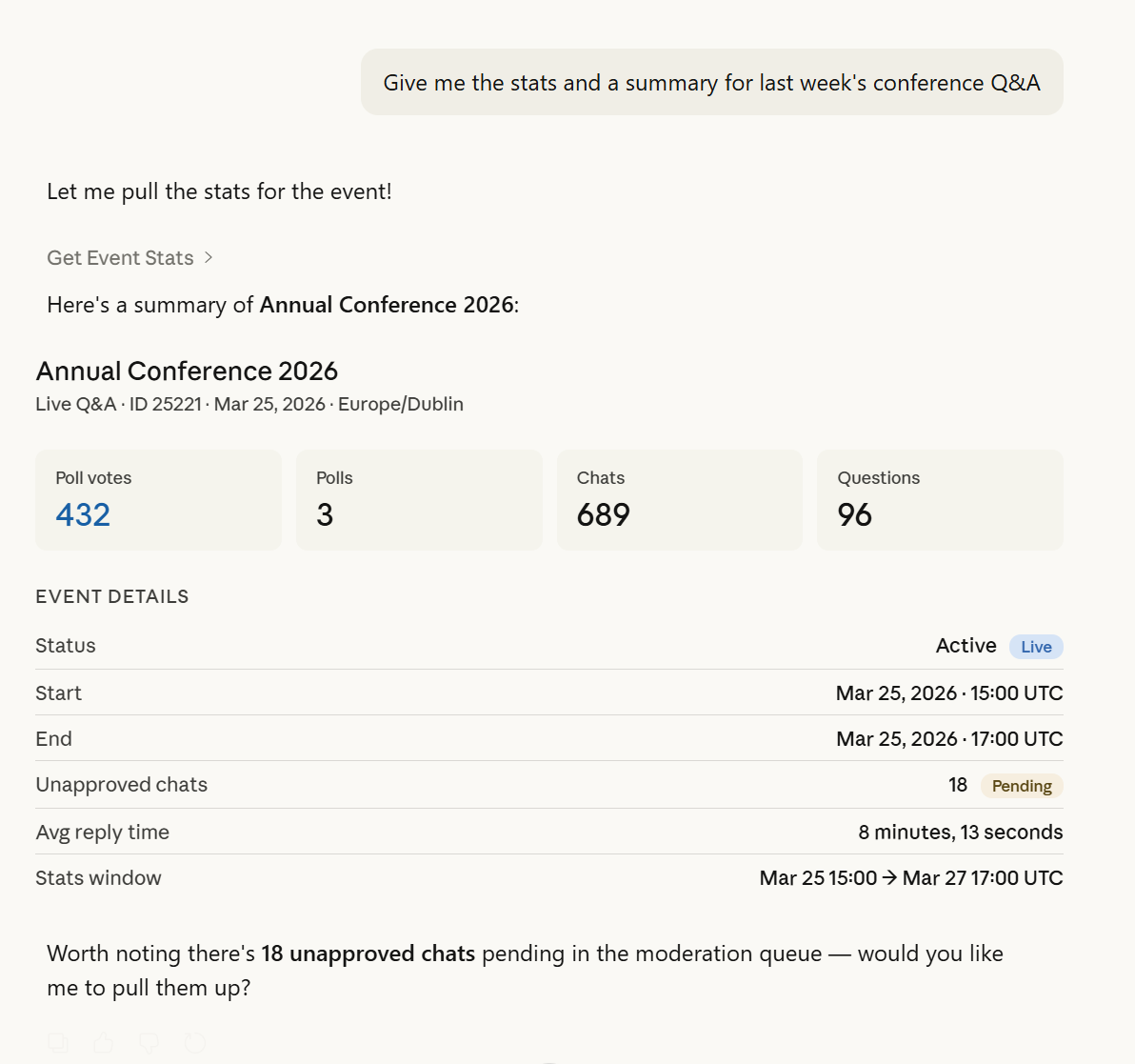
"Give me the stats and a summary for last week's conference Q&A" — the counts, the sentiment and the takeaways the Report agent already wrote, so it answers instantly. "Write a fresh summary of the last thirty minutes" runs the AI again over that window. "How much did we spend on AI in August?" gives the per-agent breakdown.
Permissions and safety
- Same rules as the console. The server checks every call against your role in the workspace you authorised. It cannot reach other workspaces, even ones you belong to, without a separate authorisation.
- Everything is on the record. Each tool call is written to the workspace's audit log, attributed to your account and naming the tool — so a colleague can always see that you approved those questions, via an assistant.
- Destructive actions ask twice. Deleting an event, a post or a category needs an explicit confirmation flag the assistant can only set after you have confirmed; there is no wording that skips it. Prefer un-approving over deleting — it is reversible.
- The assistant can be wrong. It chooses which tool to call from what you typed. Read back what it says it did — especially before it publishes — and keep the console open beside it during a live event.
Rate limits
Each connection may make 60 requests a minute. Beyond that the server answers 429 Too Many Requests with an X-Rate-Limit-Retry-After-Seconds header, and a well-behaved assistant waits and retries on its own. If you keep hitting the limit — bulk approvals over a large backlog, say — ask for the work in smaller batches.
Tool catalogue
A public, unauthenticated catalogue of every tool — names, descriptions, input schemas and annotations — is at either of these addresses:
https://www.reactlive.com/api/v2/mcp/tools.json
https://www.reactlive.com/.well-known/mcp.json
Both return the same document, combining the initialize and tools/list shapes from the MCP specification. It is useful for seeing what the server can do before you connect anything, and for MCP directories that index servers by their tool surface. Reading the catalogue needs no sign-in; calling a tool always does. The address is also advertised as catalog_endpoint in the OAuth server metadata, so clients that follow the discovery chain find it on their own.
Where ReactLive's MCP server is listed
The authoritative entry is on the Official MCP Registry — the open, machine-readable catalogue that MCP directories build on — under the name:
com.reactlive/reactliveThe registry entry is public JSON anyone can read. The com.reactlive namespace is DNS-verified against reactlive.com, so an entry under that name is ours.
ReactLive is also listed on MCP directories — among them:
More will follow as other directories pick the entry up. A listing is only a signpost: whichever one you arrive from, connecting works exactly as described above.
https://www.reactlive.com/api/v2/mcp. A listing that points anywhere else is not ours — don't connect to it.MCP and the AI agents
These are two different things that happen to both involve AI. The agents — Engage, Answer, Protect, Report — are ReactLive working inside the event, on the room's behalf, at the autonomy you set. An MCP connection is you, working on ReactLive from your own assistant, with your own permissions. Nothing you do over MCP changes an agent's level; and an agent never uses your connection.
Troubleshooting
| What you see | What to do |
|---|---|
Authentication error, or a 401 | The token has expired or been revoked. Disconnect the server in your assistant and connect it again to go through the authorisation afresh. |
| "No workspaces found" on the authorisation page | You are signed in, but the account is not a member of any workspace. Accept your invitation (or create a workspace) first, then retry. |
| It is working on the wrong workspace | Disconnect and reconnect; choose the other workspace on the authorisation page. |
| "I couldn't find that event" / an empty result | Ask it to list events first and use the name it shows. Ended events are still listed; deleted ones are gone. |
| It says it did something, but the console does not show it | Refresh the console. If it is still missing, ask the assistant what the tool returned — a permission refusal is reported back to it in plain words. |
429 Too Many Requests | The rate limit. Wait a moment; for bulk work, ask for smaller batches. |
Still stuck? Tell us which assistant you are using and what you asked it.