The audience app is what attendees open on their own phones. Nothing to install: they scan the QR, open the link or type the code, and they are in. Everything they do — a question, a vote, a reaction — reaches the console and the wall within a second.
Joining
- Scan the QR on the wall or a slide, open
reactlive.com/e/<code>, or type the code at reactlive.com/join. Case, spaces and hyphens do not matter. - Sign in — Continue with Google, Continue with Microsoft or Continue with email (a code is emailed) — or, under or continue as guest, enter Your name and Join event, whichever the event's access settings allow.
- Tick the box to agree to the privacy policy. The event pass is shown, and the home screen opens.
Joining before the start works: the app shows when the event starts and opens the rest when it goes live. The same link after the event shows the recap.
What attendees can do
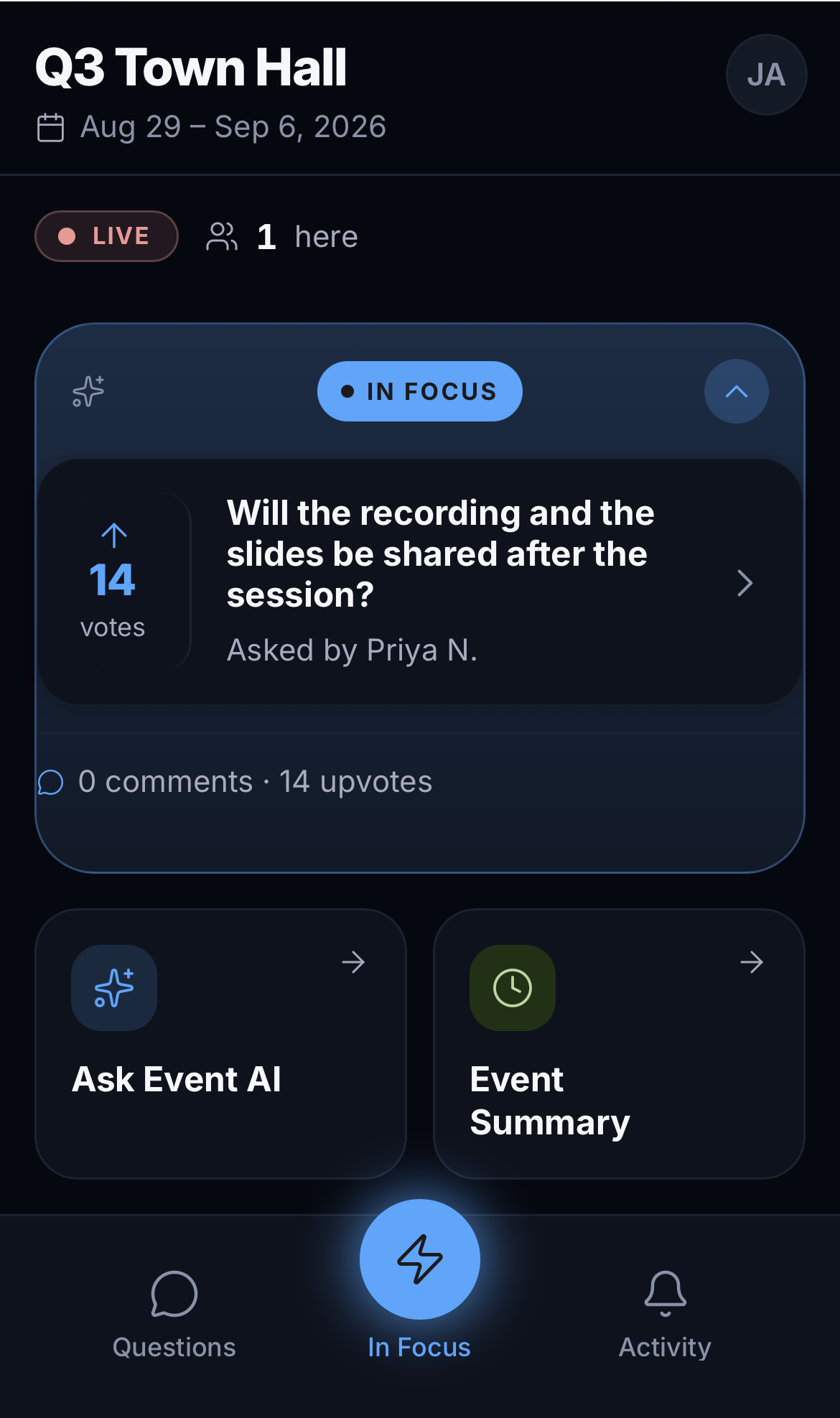
- In Focus
- What is on the wall right now — the spotlighted question, the live poll, the announcement — with the reactions and votes on it. When the wall is empty the card says so.
- Live Q&A
- Ask a Question: write it, optionally pick a topic, optionally Ask anonymously. Before sending, a nudge to check it is relevant and has not been asked already; the AI can also suggest AI-inspired questions to start from. Then upvote others' questions, comment, and watch replies arrive. Tabs: Top, Recent, Mine. If the event holds questions for approval, the asker is told the moderators have it.
- Polls & results
- Select one option and submit. Results appear after voting when the event or the poll allows it — live, as the tally moves.
- Reactions
- The event's reaction set; a tap sends one, and it floats up on the wall and the event page for everyone.
- Ask Event AI
- A private chat with the event's AI about the schedule, the speakers, the venue — answered from the event's knowledge sources. When the AI cannot answer it says a moderator will follow up in the same conversation. Previous conversations are kept. Only shown when the event has it on.
- Event Summary
- The AI's running summary of the session so far.
- Rate the Event
- One to five stars, once the rating poll is in focus or the event has ended. The thank-you note is the organiser's.
- Activity
- Notifications: someone answered your question, your question got an upvote, someone reacted to your comment, a new update from the organisers.
- Recap
- After the end: the highlights, the poll results, the summary, and the rating card.
Settings, on the phone
From the menu: display name (Preferred username), Dark mode, Notifications, and Sign out. Report on a question lets an attendee flag it to the moderators.
What moderators see that attendees do not
- Who asked an anonymous question.
- Questions and comments that are held for approval or hidden.
- Every Ask Event AI conversation (they are private to the attendee and the moderators).
Test it from a phone, not a laptop
The app is built for a phone. The join link picks the right surface by device — a phone gets the app, a laptop gets the event page. To force the app on any device use
reactlive.com/m/<code>.