Engage is where you run the room: polls, updates, the audience tools, what is on the wall right now, and the wall's own settings. The Engage agent proposes here too — a poll worth launching, a prompt worth pushing, a question worth putting on the wall.
Agent queue
When Engage finds something worth doing it proposes it here, and you approve, edit or dismiss it. Each card says what it wants to do, why, and shows a preview of what the audience would get. Cards expire — a poll for a moment that has passed is worse than no poll — so leaving one is a decision too. On Auto the queue is empty because Engage acts on its own; everything it does lands in the log and can be undone. On Off nothing appears here. What Engage can do →
Polls
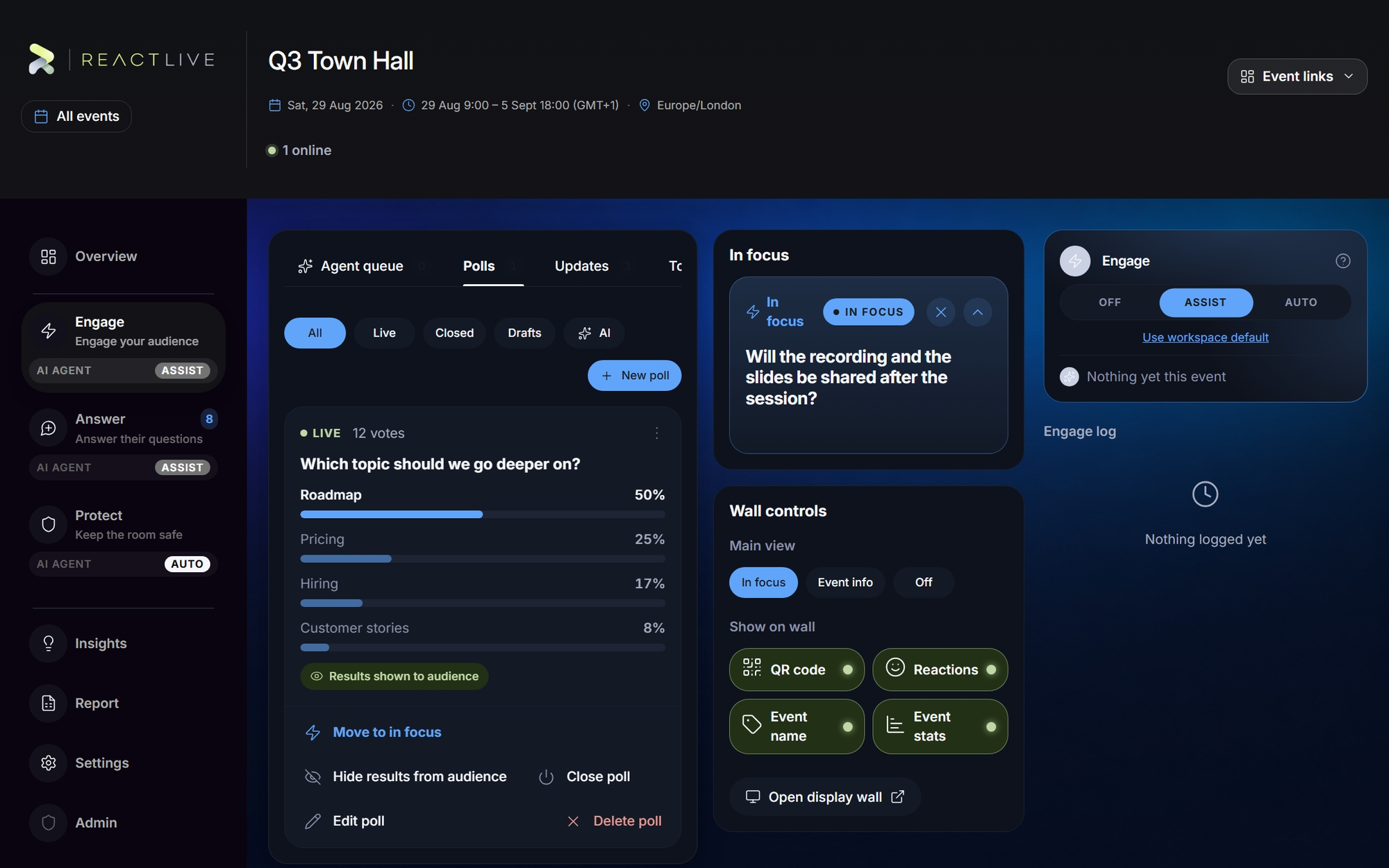
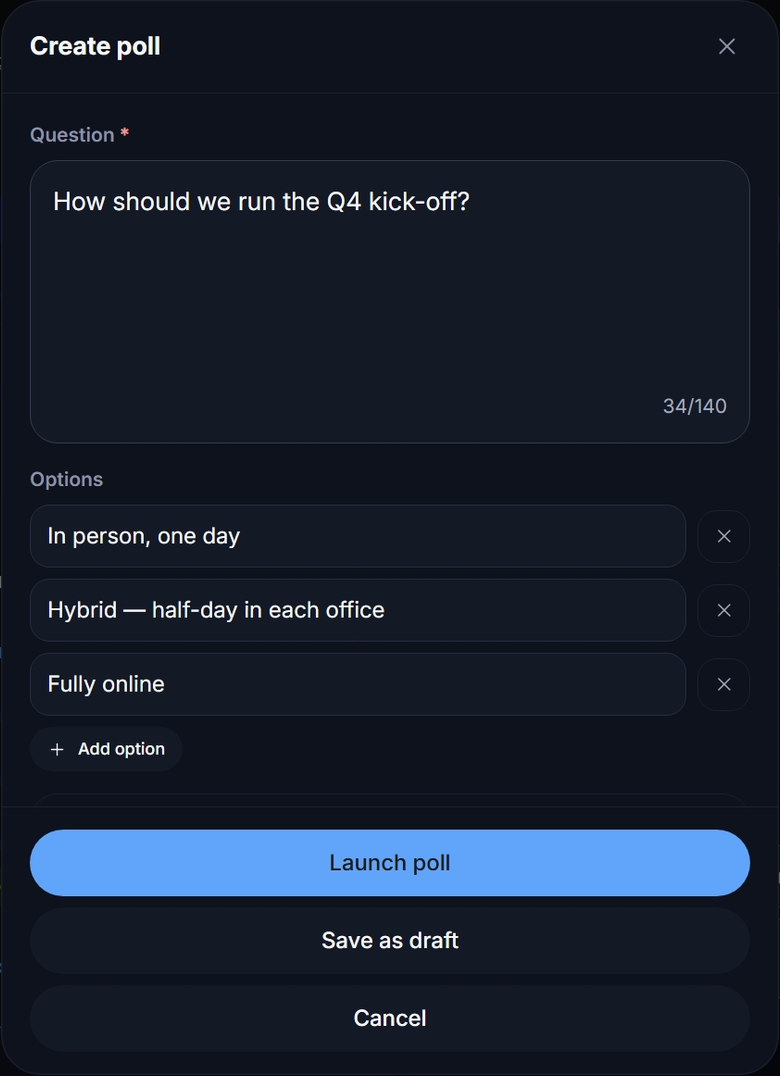
New poll opens Create poll: the question and at least two options (Add option for more). One switch matters: Show results to audience — reveal the tally live as people vote — or keep the results hidden until you choose to show them. Save as draft keeps it ready; Launch poll publishes it.
A published poll's card shows the running count per option and the leader. From its menu:
- Move to in focus — put it on the wall. Votes keep updating there.
- Show results to audience / Hide results from audience — flip audience visibility at any time.
- Close poll / Reopen poll — stop or restart voting.
- Share results — share the tally.
- Edit poll — change the question or options.
- Delete poll — votes already cast are lost; this cannot be undone.
The tab's filters — All, Live, Closed, Drafts, and AI for the polls an agent wrote — keep a long event tidy.
Updates
An update is a short message to every screen — an announcement, a link, a room change. New update takes a title, a body (280 characters) and a category, which sets the icon and colour the audience sees. Reframe with AI offers a tighter wording as an AI suggestion you can use, retry or dismiss; your text is unchanged if it cannot. Save as draft or Publish now.
Published updates can be moved to in focus, unpublished (hidden again), edited, or deleted; a draft has Publish. Filters: All, Published, Drafts and AI.
Tools
The audience tools in one panel:
- Start a Q&A session
- Open the floor for questions. Opens or closes question asking for the whole audience. When closed, the audience app says questions are not open right now.
- Quick text to audience
- Push a short message to every screen. A one-line message that appears on the audience app and the wall without going through the updates flow. Saved messages stay in this session; pushing one publishes it.
- Live reactions
- The reactions the room can send. A preview of the current set. Change the set under Settings → Reactions.
- Feedback
- Pulse-check the room. The rating poll: attendees rate the session one to five stars once it is in focus. The question is locked once anyone has rated (changing it would misattribute the ratings already collected); the thank-you text can be edited any time. The Engage agent runs this itself in the final stretch of an event if nobody has.
- Event join code
- Scan to join the event. The code and QR, with copy and share.
In focus
In focus is what is on the wall this second — one item at a time: a question, a poll, an update, a quick message, the rating poll, or nothing. Engage opens on its In focus tab, which shows the current item with an IN FOCUS badge; × clears it. A question in focus carries Mark as answered and Skip. Any question, poll or update anywhere in the console has Move to in focus on its menu. Focus history — everything that has been on the wall, newest first — is on the mobile console as Spotlight history.
Wall controls
The wall's chrome, flipped live from here (and from the mobile console):
- Main view — In focus shows the focused item; Event info shows a large centred join QR (the right choice before you have anything to show); Off blanks the main area.
- Show on wall — four independent toggles: QR code (the side join panel), Reactions (the floating reactions layer), Event name and Event stats (the live headcount) in the top bar.
- Open display wall opens the wall in a new tab.
Changes reach every open wall within a second. The wall →
The Engage log
Everything Engage did or proposed, and every change to its level, in the right-hand column. The combined log for all three agents is on the Overview.