The event page is the public, desktop-sized page for an event: what people find before it starts, the stream while it runs, the questions, and whatever is in focus. It is the same event, the same data and the same realtime feed as the audience app, laid out for a wide screen around a live stream.
The join gate
The first screen asks for the event code — or the visitor scans the QR — then the page is revealed and loads. Anyone arriving on the join link (reactlive.com/e/<code>) skips the gate. Depending on the event's access settings, the visitor then signs in with Google, Microsoft or email, or continues as a guest with a name, and agrees to the privacy policy.
The layout
- Top bar
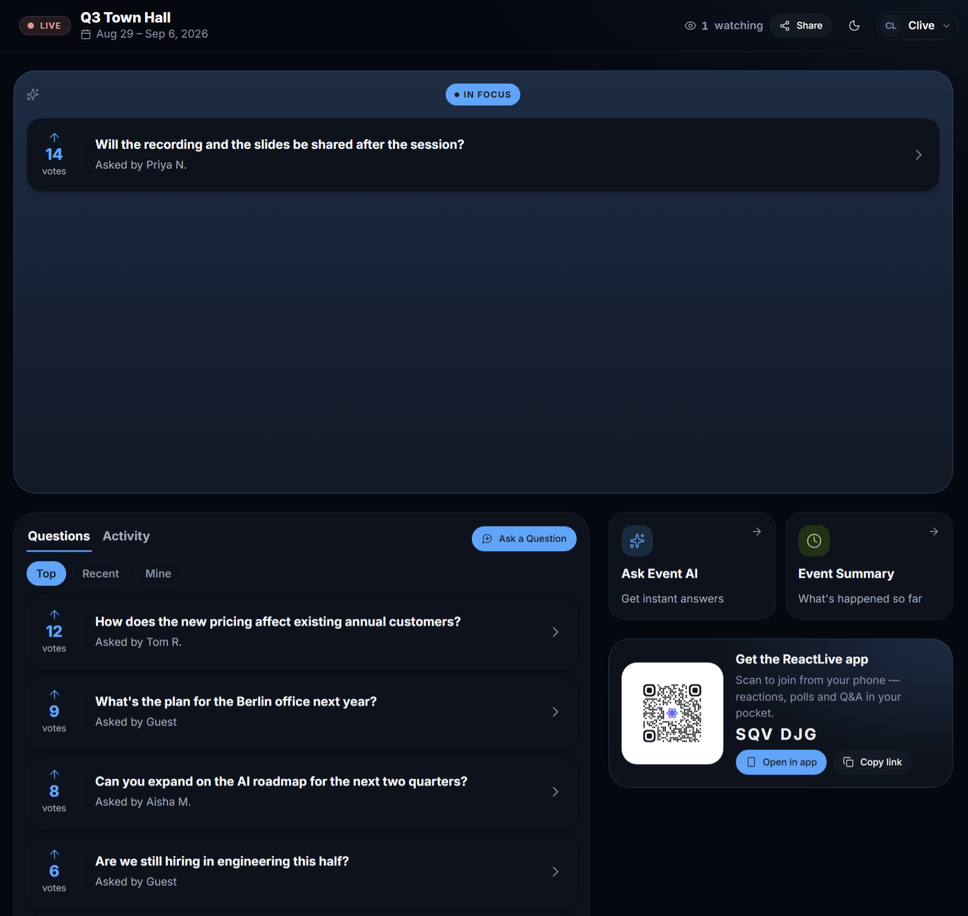
- The event title and date, its state — Upcoming, Live or Ended — how many people are here, Share, the light/dark toggle and your name menu.
- Stream
- The live feed set under Settings → Configuration → Live stream: YouTube and Vimeo embed with their own controls; HLS and direct video files play in ReactLive's player with a scrub bar, volume, fullscreen and keyboard shortcuts (space, arrows, m, f). Reactions from the room float over the picture. Without a stream the area shows the event's card.
- Questions · Activity
- The question stream with votes — Top, Recent, Mine — and Ask a Question — with an optional topic and an Ask anonymously switch. "Your name stays hidden from other attendees" applies to the audience only; moderators always see who asked. Activity is the event's running log — All, what went In Focus, and your Notifications.
- In Focus
- Whatever a moderator has put on the wall this second, live.
- Event summary · Ask Event AI
- The AI's current summary of the session, and the private Event AI chat when the event has it on.
- Get the ReactLive app
- The QR and the event code, with Open in app and Copy link, so someone watching on a laptop can move the interaction to their phone.
Before and after the event
Before the start the page shows the event card, its time in the visitor's timezone and the countdown; questions open when the event starts unless the event allows them early. After the end the page shows the recap and the rating card. The join code and the link keep working in every state.
Sharing it
The Share button and Event links → Event page in the console both copy the join link. Put it in the calendar invitation; put the QR on the first slide.