ReactLive turns a session — a town hall, a conference talk, a webinar, a class, a watch-along — into a two-way conversation. The audience asks questions, votes, answers polls and reacts from their phones; you run it from a console; the room sees what you put on the big screen; and three AI agents work the event alongside you, at whatever level of autonomy you give them.
There is nothing for anyone to install. Attendees join in seconds from any device with a short code, a link or a QR scan.
The five screens every event has
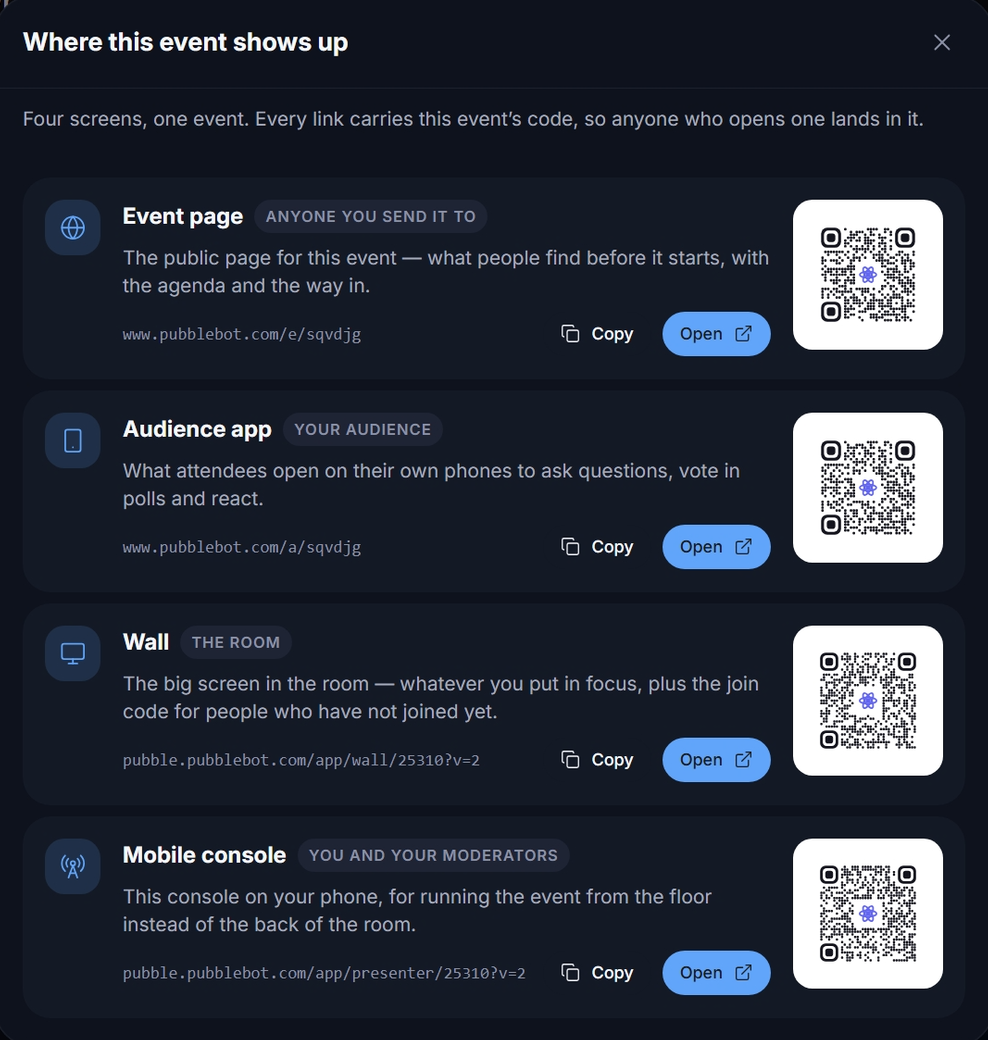
Every event you create comes with the same set of surfaces. You will see them as tiles on the events list and under Event links at the top of the console.
| Screen | Who uses it | What it is |
|---|---|---|
| Console | You and your moderators | Where the event is run: the question queue, polls, updates, the agents, insights, the report and every setting. Opens at yourworkspace.reactlive.com/dashboard. |
| Event page | Attendees on a laptop | The public page for the event — what people find before it starts, the stream if there is one, questions and whatever is in focus. |
| Audience app | Attendees on a phone | Ask, vote, answer polls, react, chat privately with the Event AI, rate the session. Reached by code, link or QR. |
| Wall | The room | The big-screen display: whatever you put in focus, the join code, and the reactions floating up from the audience. |
| Mobile console | The presenter, on stage | The console on a phone — the queue, polls, updates and the wall controls, for running the event from the floor. |
Who does what
- Community admin
- Manages the workspace: the team, the account, and every event in it. Sets the workspace-wide defaults the events inherit. See Account & team.
- Moderator
- Creates and runs an event with full control — settings, insights and the report. The person who creates an event is its first moderator; add the rest under Settings → Team.
- Presenter
- Runs the room from the stage with the mobile console. Presenters do not see the agents' autonomy controls — the agents still work, they just are not theirs to configure.
- Attendee
- Joins with the event code. Depending on the event's access settings, signs in with Google, Microsoft or email, or joins as a guest.
The life of an event
- Create it — name, dates, timezone and an event type. The type applies a sensible setup (who can join, whether questions need approval, reactions) that you can change afterwards. Creating an event →
- Prepare it — add your team, upload the materials the AI may answer from, check the access settings, put the join code on your slides. The checklist →
- Go live — the event goes live at its start time, or the moment you press Go live now. Attendees can join before that: the audience app shows a "starts soon" state, and the code always resolves.
- Run it — approve and answer questions, launch polls, push updates, put things on the wall. The agents propose (or act) according to their level; whatever needs a person shows up under Needs your attention. The console →
- End it — the event ends at its scheduled end time or when you press End event. Audience surfaces switch to their after-event state (the recap and rating), and the live insights freeze into the final report.
The AI agents, in one paragraph
Three agents work every event: Engage runs the room (polls, prompts, what goes on the wall), Answer handles questions (drafting cited replies from your materials, merging duplicates), and Protect watches for trouble (abuse, spam, unsafe content). A fourth, Report, only observes — it produces the live insights and the report. Each of the three has one control with three settings: Off, Assist (it suggests, you approve — nothing reaches the audience until you say so) and Auto (it acts on its own and logs every action). A new event starts with Protect and Report on Auto and Engage and Answer on Assist. Read the agents guide →
Signing in and your workspace address
Your workspace lives at yourworkspace.reactlive.com. Sign in at reactlive.com/signin with the email you signed up with (a sign-in code is emailed to you) or with Google or Microsoft; you land on your events list. Anyone you add to the team signs in the same way.