Every screen in the console configures one event. Open it with Dashboard on the events list; All events at the top left takes you back.
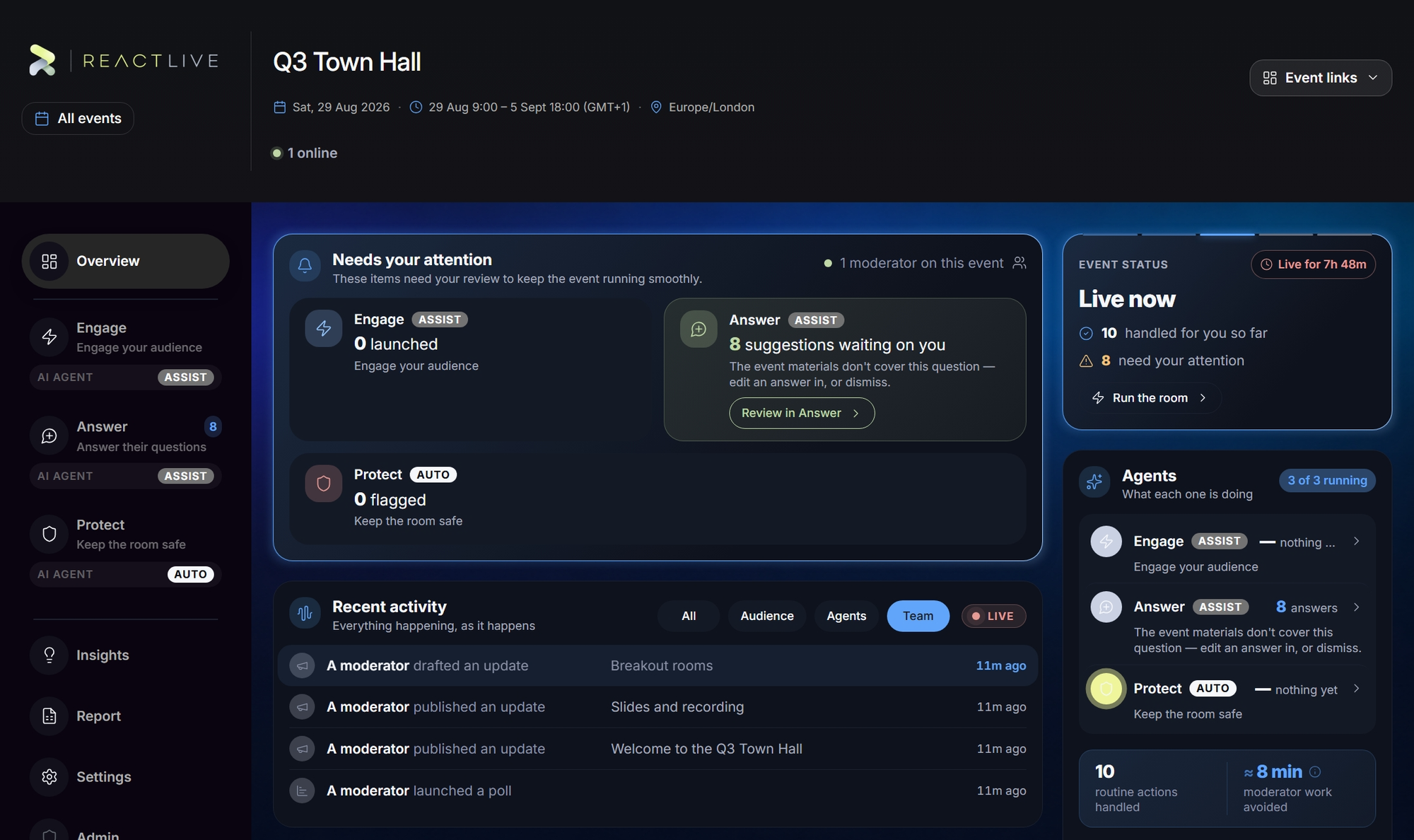
The header
The band across the top is the same on every screen: the event's name, its date, time range (with UTC offset) and timezone, and a live online count — how many people have the event open right now. Event links on the right opens Where this event shows up — the four audience surfaces, each with its address, a QR code, Copy and Open:
- Event page
- The public page — what people find before it starts, with the agenda and the way in.
- Audience app
- What attendees open on their own phones to ask questions, vote in polls and react.
- Wall
- The big screen in the room — whatever you put in focus, plus the join code for people who have not joined yet.
- Mobile console
- This console on your phone, for running the event from the floor instead of the back of the room.
The sidebar is your to-do list
The left column is the whole console in three groups. During the event: Overview, then the three AI agents — Engage, Answer, Protect, each in its own colour. After the event: Insights and Report. Workspace: Settings, and for workspace owners and admins, Admin, which leaves the event for the events list. When an agent is holding something for your decision, its row shows a count. Those counts are the to-do list: a 23 beside Answer means twenty-three drafts are waiting on you. Each agent's level is on its card and in the Agents panel.
Your name and role sit at the bottom; the gear opens your profile, where Welcome screen and Take the tour again live.
Needs your attention
One card per agent: what it is holding for your decision, or what it dealt with on its own. Nothing here is a number about the past — it is the list of things that want a person. Review in Answer (or Engage, or Protect) jumps to that agent's queue. A small line on the right tells you how many moderators are on this event.
Event status
Live now with how long it has been live, or the countdown to the start, or Ended. Underneath: how many items the agents handled for you so far and how many need your attention. Run the room opens the Engage section.
Recent activity
Every question, poll, update and agent action lands here the moment the doors open, newest first. The filters split it by who did it: Audience, Agents, Team, or LIVE for the stream as it happens. Opening an item clears its "new" mark.
Event pulse
The agents' read of the room, at this moment — a sentence or two on what the audience is actually asking about, the current sentiment mix with how many contributions it was sampled from, and when it was written. It is rewritten as the room moves; Open Summary shows the full summary. When there is not enough to read yet it says so rather than inventing a number.
Quick actions
The things you do most, without leaving the Overview: Moderate Q&A, Launch poll, Post update, shortcuts to the Audience view and the Wall, and Copy audience link.
Agents
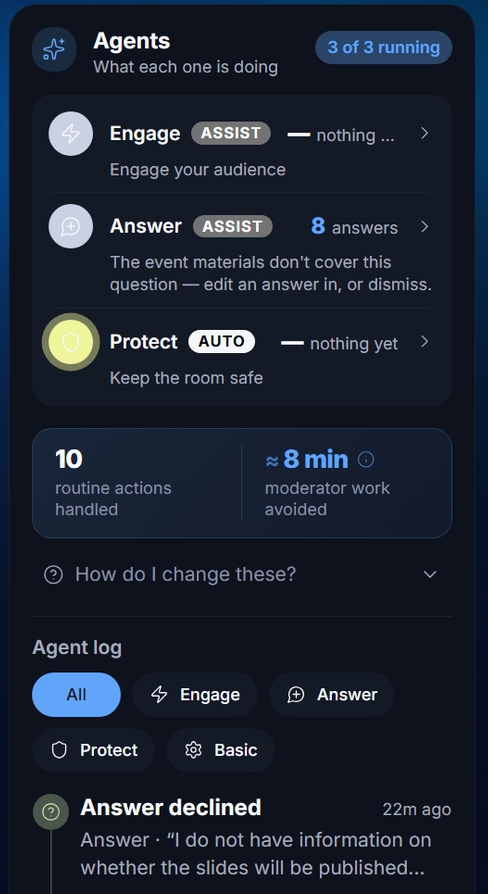
Three agents, and what they are doing: Engage runs the room, Answer handles questions, Protect watches for trouble. Each row says what that agent has in hand (30 answers, nothing waiting) and its level; open one to change what it is allowed to do unasked. How do I change these? explains the levels in place.
Under it, the Agent log: every agent action, newest first, filterable by agent. This is the record you check when something appeared on screen and you did not put it there — on Auto it is the only place that decision is visible.
The three agent sections
Each of Engage, Answer and Protect follows the same layout: the agent's own content in tabs on the left (its Agent queue first, then the things it works with — polls and updates, the question feed, the review queue), and on the right the agent's card with its Off / Assist / Auto control and its own Activity log. The ? in the card's corner opens the agents guide at that agent.
- Engage Run the room — polls, updates, tools, In focus, wall controls.
- Answer Questions — the Q&A feed and the Answer agent's drafts.
- Protect Moderation — the review queue and the decision history.
The tour
The first time you open a console, Meet your event agents introduces the three agents and their levels. Show me around starts a short tour of each panel; Start using the console skips it. Tick Show this next time I open the console to see the welcome again, or reopen it any time from your profile menu.