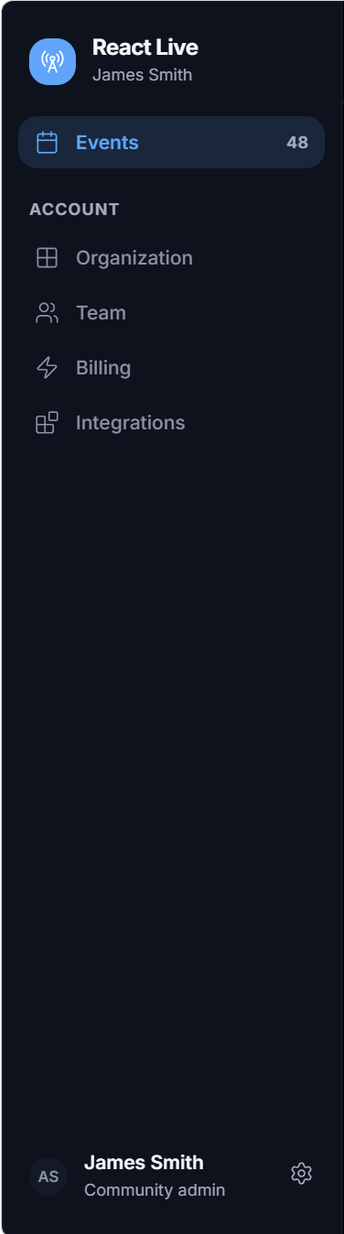
Everything outside a single event lives under Account in the sidebar of the events list. Only community admins see all of it.
Organization
Your workspace's details: its name, the team size and how many events it has held. Privacy policy is the link attendees see on the consent line of every event's join screen — set it once here and Save. The agents follow the workspace's defaults on every event that has not overridden them; see how defaults and overrides work.
Team
The people in your community — everyone who can sign in to the workspace. There are two roles:
- Community admin
- Manages the workspace, the team, billing and every event.
- Member
- Part of the community — joins events and takes part. A member becomes a moderator of a specific event when added to that event's team.
- Add a community member — a name, an email address and the role, then Add member. New people receive an invitation and show as Pending until they accept; Re-send invite is on the row's menu if it did not arrive.
- Make community admin / Make member — on the row's menu. There is always at least one admin.
- Assign to events… — add the person to the teams of the events you pick.
- Remove takes someone out of the workspace and out of every event team they were on, after a confirmation.
Per-event moderators are managed on the event, under Settings → Team. Adding someone there who is not yet in the workspace invites them to both.
Your profile
The gear next to your name opens your account: your name, the email you sign in with, and sign out. The light/dark toggle at the top right is remembered per browser and carries across every ReactLive screen.
Billing
Plans and payment will live here. Nothing is charged today.
Integrations
This screen reads Integrations are coming soon: connecting the tools you use — Slack and more — is on its way for events. One integration already works without any setup here: MCP connectors, which let Claude, Cursor or any MCP-capable assistant run your workspace — create events, moderate, run polls, pull the report — as you, from a chat. Per-event integrations (Zoom, YouTube Live and others) will appear under the event's Settings → Integrations when they arrive. The live stream setting already lets you show a YouTube, Vimeo or HLS feed on the event page.